Social Media

All posts and content shared on social media by Martin County must be accessible. Departments or divisions sharing content on social media should utilize all available accessibility features offered by each platform and refer to the resources on this page for additional guidance.

Accessible Social Checklist


Use the following checklist to ensure your social media posts meet accessibility standards and best practices. This list is not exhaustive, but includes tips to help you avoid common issues. Download Printable Checklist (PDF)
General Guidelines


Consider these general guidelines for creating accessible social media posts:

  1. Include important information in the text of your post.
  2. Add alt text to all posts containing an image.
  3. Avoid using images alone to convey information.
  4. Ensure all videos include captions.
  5. Use high-contrast colors (at least 4.5:1) for graphics.
  6. Use plain language; avoid abbreviations and acronyms.
  7. Place hashtags, links, and mentions at the end of your post.

Capitalize Hashtags

Capitalize the first letter of each word when using hashtags. Capitalizing the first letter of each word improves readability for everyone and helps screen readers identify the individual words. 

Examples:

  • #MartinCountyFlorida
  • #SailfishSplashWaterpark

Limit Emojis

Screen readers read the names of emojis. For example, "👏 👏 👏 👏" would be read aloud as "Clapping Hands Emoji, Clapping Hands Emoji, Clapping Hands Emoji, Clapping Hands Emoji." Be considerate of screen reader users by using emojis judiciously and adding spaces between them.

Graphics


Images with Text

Screen readers cannot read embedded text within graphics or images. If an image contains text, include the text that appears on the image in the alt text description. However, if an image contains a significant amount of text, always provide a complete full-text version of the content in the body of your accompanying post, or link to it elsewhere.

  1. Keep text in images minimal.
  2. Include the text that appears on the image in the alt text.
  3. Avoid small font sizes; 12pt or larger is recommended.
  4. Always use text colors that are high contrast against the background.

Color

Use WebAIM's Contrast Checker or Adobe Color to evaluate your graphic's color contrast.

Do this
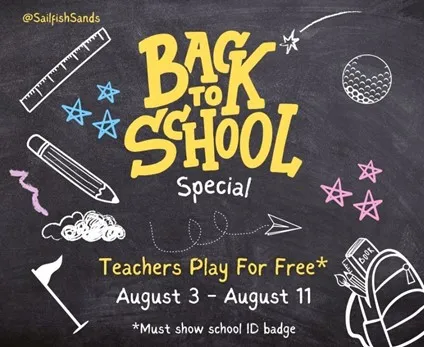
Back to School Special

Alt Text:

"@SailfishSands Back to School Special, Teachers Play for Free (Must show school ID badge), August 3 through August 11."

Why Is This Good For Accessibility?

This graphic contains minimal text, allowing for clear and concise alt text that contains the same words as in the image.

Don't do this
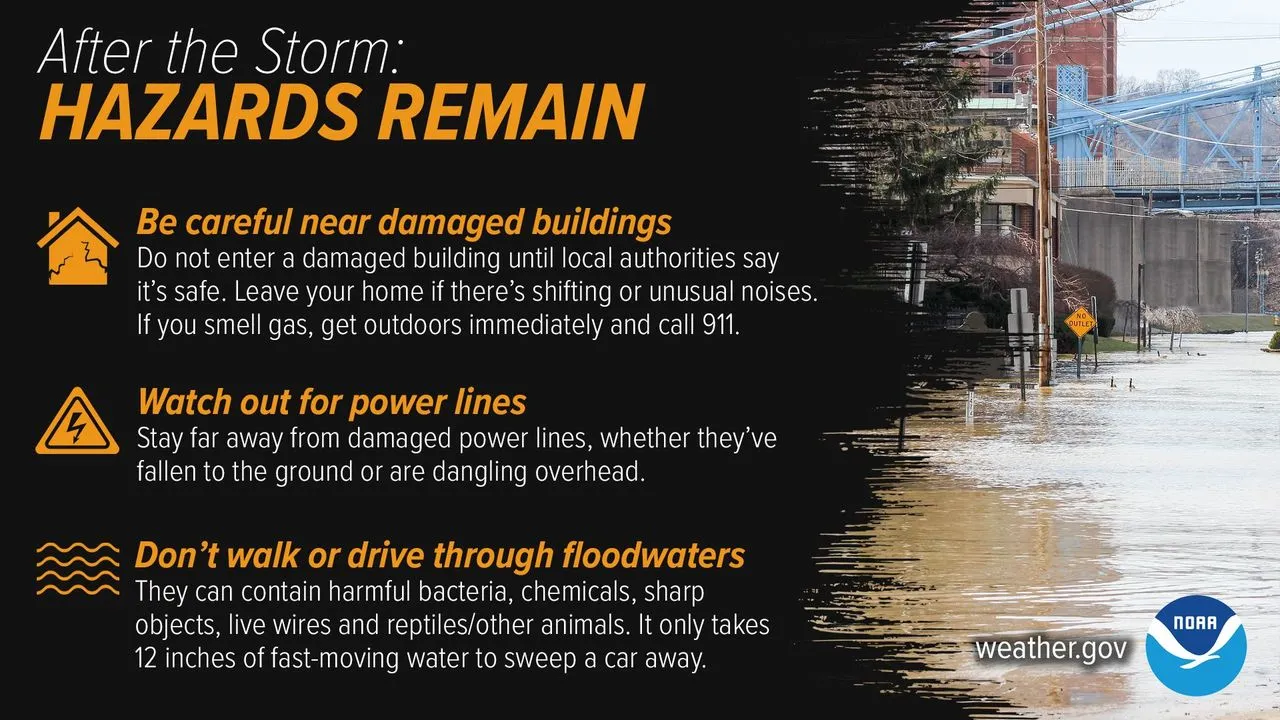
Hazards Remain

Alt text:

"Important safety information."

Why Is This Bad For Accessibility?

Screen readers cannot read embedded text within graphics. As a result, users relying on these technologies would only hear the alt text and would miss the essential information.

Solution:

Since this graphic contains a large amount of text, a full-text version of the content should be linked to or included in the accompanying post, in addition to brief alt text such as, "Graphic illustrating after-storm safety procedures."

Don't do this
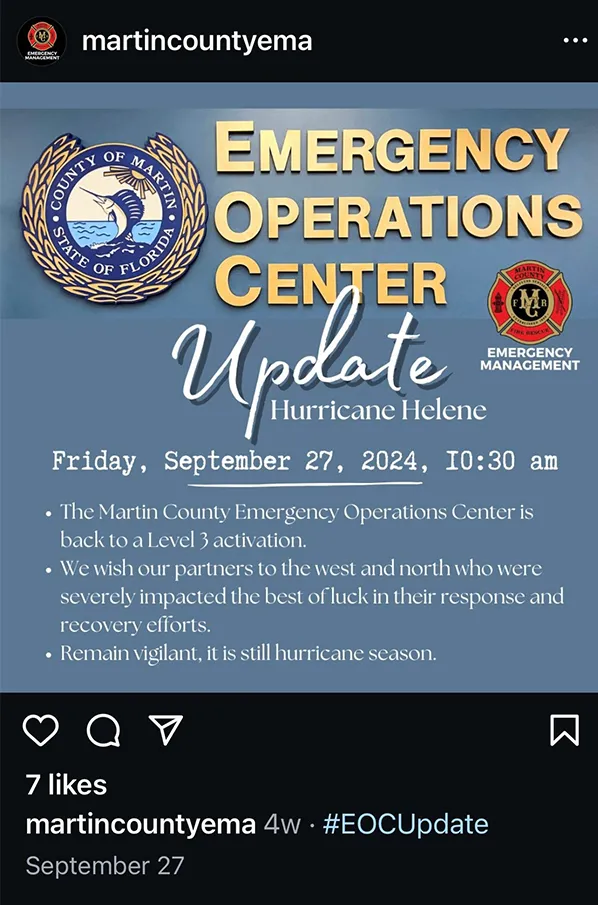
Sample Social Media Post

Why Is This Bad For Accessibility?

This post features a graphic with embedded text, but it lacks alt text and does not include the graphic's text in the body of the post.

Without these, a screen reader user would only hear, "Hashtag E-O-C Update," without any context or understanding of the information intended to be conveyed.