
Headings

Proper use of headings is essential for content structure and accessibility. Headings allow assistive technology users to navigate documents and pages by jumping directly to specific sections. 

Impact


Changing the size, color, or boldness of plain text does not create a proper heading. Using heading styles adds a heading tag, which creates the structure and functionality necessary for screen reader users to navigate a page as efficiently as sighted users. Video: See how a screen reader uses headings in a document.

General Guidelines

  • Use built-in headings styles.
  • Avoid skipping heading levels.
  • Avoid fake bold or underlined headings.
  • Keep headings short.
  • Avoid use of all caps.

Heading Hierarchy


It is essential that you organize your content using the correct heading order, rather than choosing them for the way they look. Headings should follow a hierarchical order without skipping levels.

Heading 1 should be applied to the main title, then Heading 2, then Heading 3, and so on. It is permissible to skip headings in the other direction if the outline calls for it (for example, from H4 to H2).
Proper Use of Headings
  • Heading 1: Main title
    • Heading 2: Subheading
      • Heading 3: Sub subheading
      • Heading 3: Sub subheading
    • Heading 2: Subheading
      • Heading 3: Sub subheading
      • Heading 3: Sub subheading

Use Real Headings


This is a Real Heading

The text above is marked as a Heading 3; it automatically appears with the appropriate visual style and adds the appropriate tag so that screen readers can jump straight to its content.

This is Bold Text Being Used Incorrectly as a Heading

A common accessibility mistake is formatting normal text to visually "look" like a heading by making it bold or increasing the font size. Though it may look like a heading, the underlying tag is not correct.

How to Create Headings


Use built-in heading styles available in content creation tools like document editors and rich text editors.

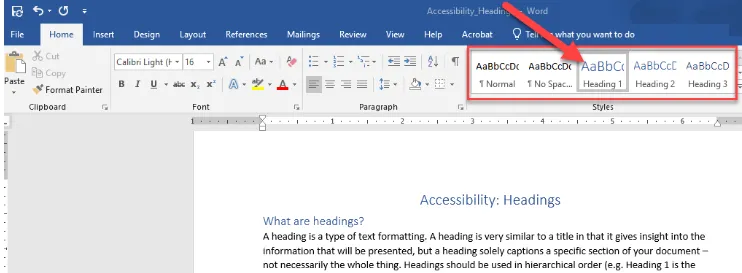
Use built-in heading styles available in document authoring tools like Microsoft Word. You can change the look of a heading by customizing the style template.

Microsoft Word Heading Styles

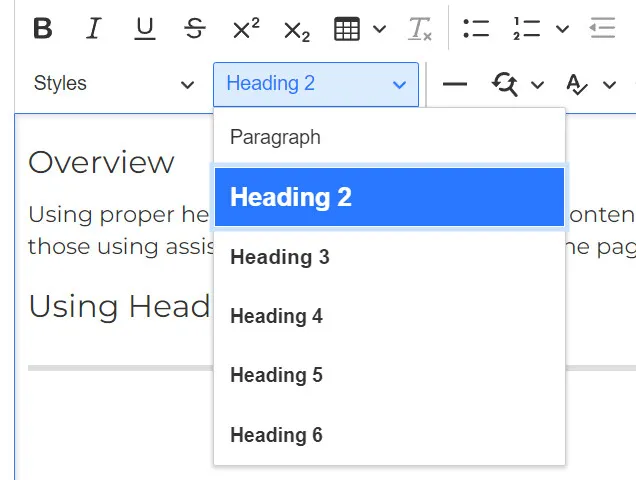
When creating or editing a web page, use the heading styles found in the Paragraph dropdown of Drupal's rich-text editor toolbar. Note, Drupal automatically assigns a Heading 1 to your page title.

Choosing the proper heading level in the Content Editor.