Emails

Email is a vital digital communication tool. This page includes tips and best practices for designing inclusive, easy-to-read emails that improve accessibility for all recipients.

Composing an Email


Text

  • Use a sans-serif font like Arial, Calibri, Helvetica, Tahoma or Verdana.
  • Avoid decorative and script fonts.
  • Use a font size of 12pt or larger.
  • Left-align text and avoid full justification.
  • Break up text into short paragraphs.
  • Use properly formatted bulleted or numbered lists.
  • Use emojis sparingly, and not in place of words.
  • Use plain language.

Use Color Mindfully

  • Use high color contrast for the text against the background.
  • Avoid using background effects that contain images or patterns.
  • Do not use color alone to convey information or instructions (e.g., "click the red link").

Layout

  • Avoid distracting animations, designs, or backgrounds.
  • Avoid using tables for layout.

Signatures


Plain Text is Best: Using actual text for name and contact information rather than images for your email signature is best practice and the most accessible option.

Structured Information: Present information in a structured format, such as listing your name, title, department, and contact information in separate lines. This ensures clarity and ease of reading.

Jane Smith
Programming Manager
Martin County Library System
jsmith@martin.fl.us
(772) 555-1234

Avoid Image-Only Signatures: Avoid creating email signatures that consist solely of images, as screen readers cannot interpret text within an image. However, if you choose to use a graphic or image, make sure the image has alt text and the text color(s) you choose meets level AA standards. See: How to add alt text to an image in a signature

Social Media Icons: If you include social media icons (LinkedIn, Twitter, etc.), ensure they have meaningful alt text that identifies the platform they link to.

Images, Links, and Attachments


Images

If you embed an image in the body of an email:

  • Ensure alt text is added to convey the purpose or meaning of the image.

Links

If you add a link in the body of an email:

  • Use descriptive link text that describes the purpose and/or destination of the link (e.g., "Read our help guide").
  • Avoid using ambiguous link text such as "click here" or "read more".
  • Avoid using a full URL as link text (e.g., http://www.example.com).
    • Note, for emails intended to be printed, include the full URL in addition to descriptive link text.

Attachments

First, consider alternatives. Documents are often not accessible, and can be difficult to remediate. Before you attach a document to an email, ask yourself if this is the best way to communicate the information, or could it instead be simply added to the body of the email? 

If it's necessary to attach a document to an email:

  • Make sure the document is accessible.
  • Follow accessibility best practices, such as tagging your document with headings, writing helpful alt text, and being mindful of color.

Embedding A Flyer in an Email


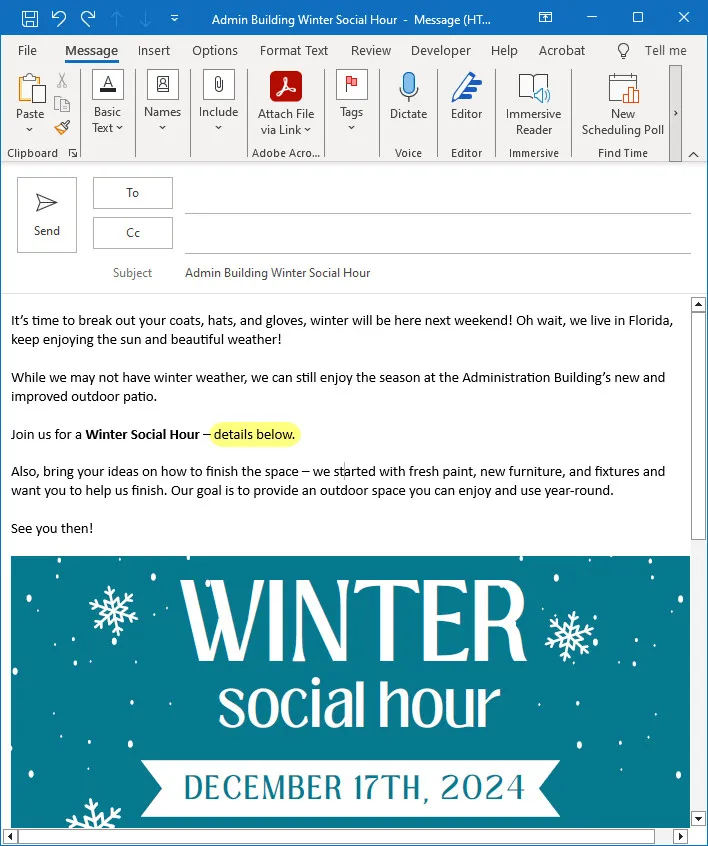
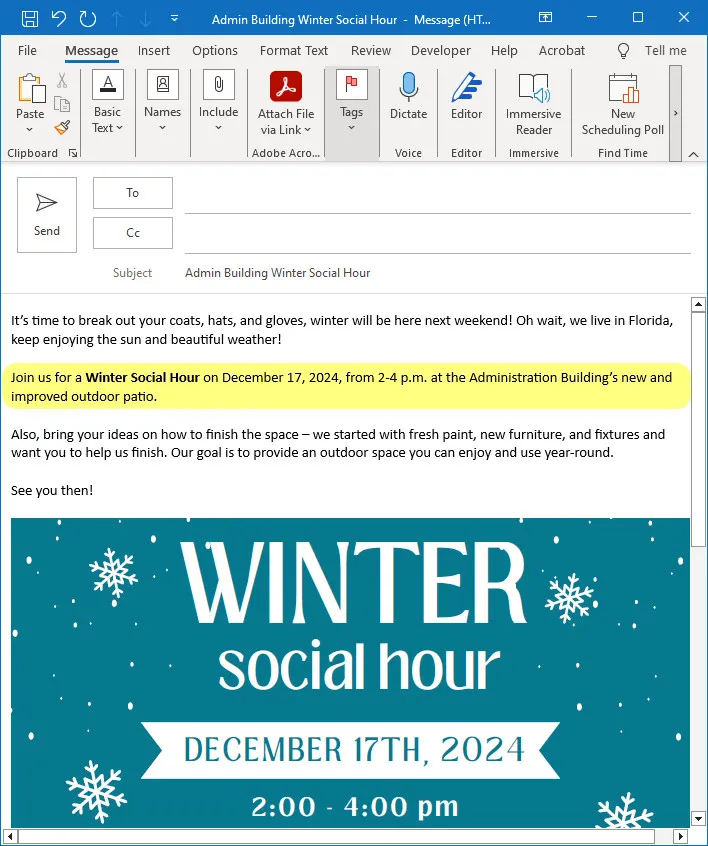
If you embed a flyer or poster in the body of an email, it will be treated as an image. Screen readers cannot read text that is embedded in an image, so it is important to include all key text—such as event details (date, time, location)—in the body of the email. This ensures that all recipients, including those using screen readers, can access the information.

Don't do this
The body of an email missing information

Why is this bad for Accessibility?

Users who rely on assistive technology, or those using Outlook's "Read Aloud" feature, would hear the phrase "details below" but miss the information since it’s embedded in the image.

Do this
The body of an email message

Why is this Good for Accessibility?

Including the same text from the flyer directly in the body of the email ensures that all users, including those using assistive technologies, can access the information.

Accessibility Checker


Use Microsoft Outlook's built-in Accessibility Checker to identify accessibility errors and warnings within your email.

  1. Go to the Review tab.
  2. Select Check Accessibility.
  3. View the Inspection Results in the Accessibility pane.