
PDF Accessibility

This page provides best practices to help you get started with creating accessible PDFs. For more in-depth guidance, refer to the documentation and resources below.

Introduction


Any PDF you share online needs to be accessible. 

Training Resources


  1. Acrobat Accessibility Series
    • This six-part tutorial series covers PDF accessibility, from the basics to advanced topics.
  2. Section 508 PDF Training Video Series
    • This video series demonstrates the minimum steps needed to create accessible PDFs. 

Getting Started


Start with an accessible source document: PDFs are usually created from source files like Microsoft Word or PowerPoint. Ensure that your original document is as accessible as possible before converting it to PDF.

Preserve accessibility features: When converting to PDF, use settings that keep tags and accessibility formatting intact. Avoid the "Print to PDF" option as this will remove your accessibility formatting. See steps for Microsoft 365.

Consider alternatives: Does your content need to be a PDF? If your content is simply informational, consider creating a web page instead. Web pages are easier to update and maintain, and are generally more accessible than PDFs.
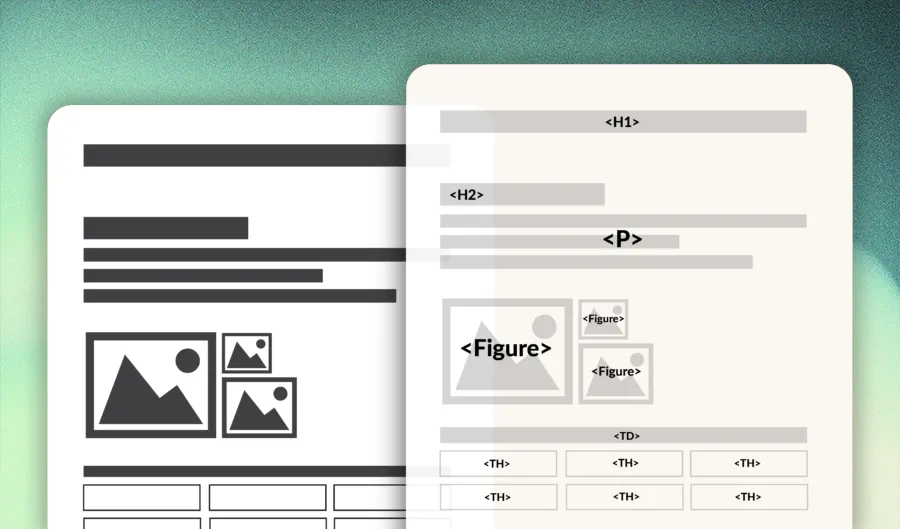
Understanding Tags


The visual and tag layers of a PDF

For a PDF to be accessible, it must have tags. 

Tags are behind-the-scenes labels that identify different parts of the document, such as headings, paragraphs, lists, images, and tables. 

Tags help assistive technologies, like screen readers, read and navigate the content in the correct order.

Understanding tags can feel complex at first. View the following links for a quick overview. 

Creating Accessible PDFs


Creating accessible PDFs involves these key steps:

  1. Tag the Document.
    • Check if the document is tagged. If not, use the Autotag Document option in the Accessibility panel.
  2. Verify Reading Order.
    • Ensure the tags are in the correct reading order. Adjust if needed.
  3. Add Alt Text.
    • Add alt text for images and mark decorative images as artifacts.
  4. Form Fields: 
    • Ensure form fields are tagged and properly labeled, and set logical tab order using the Prepare Form tool.
  5. Set File Properties.
    • Add title, author, and language in the file properties.
  6. Run Accessibility Checker.
    • Use the Accessibility Check tool to find issues.
  7. Review and Fix Issues.
    • Review the results and fix issues as necessary, ideally in the original/source document.

Adobe Help Center Guides

For detailed instructions on these steps, refer to Adobe's help guides below.

Adobe – Create and Verify PDF Accessibility Detailed step-by-step instructions guide.
Adobe – PDF Accessibility Repair Workflow Workflow for creating accessible PDFs.
Using the Accessibility Checker in Acrobat Pro How to use the accessibility checker in Acrobat Pro DC.

Scanned Documents


When you scan a physical document and save it as a PDF, the resulting file is typically an image, meaning the text isn't machine-readable. As a result, screen readers, which rely on digital text, cannot read it. To make it accessible, you need to apply optical character recognition (OCR) to convert the image into machine-readable, digital text. 

However, OCR is just the first step. You'll still need to tag the document, check the reading order, add alt text for images, and adjust other accessibility features like color contrast and form fields to make it fully accessible.